Case study: one timeline, three briefings
apply to them.
Here’s how the planner used Eventscript to fix that.

The situation
The wedding ran across two days at a Danish coastal hotel. Ceremony at the church.
Reception in the garden. A four course dinner with wine pairing. Nine guests with allergies or dietary requirements. A toastmaster running fourteen speeches through the evening. A bar extended to 3am. Breakfast service the next morning.
All of it lived in one detailed timeline, the kind most planners build by hand in a spreadsheet or a Word document.
Three teams needed to act on that timeline: the kitchen, the floor team running service and the bar, and hotel reception handling check-ins and rooms.

The old way
Before Eventscript, every team got the same document. The kitchen scrolled past churchlogistics to find their prep times. Reception read through the wine menu to find a room number. The floor team pieced together what they needed from a plan that wasn’t built for them, it was built for the planner.
That’s how details get missed. Not because anyone wasn’t paying attention, but because the information that mattered to them was buried in information that didn’t.
The Eventscript way
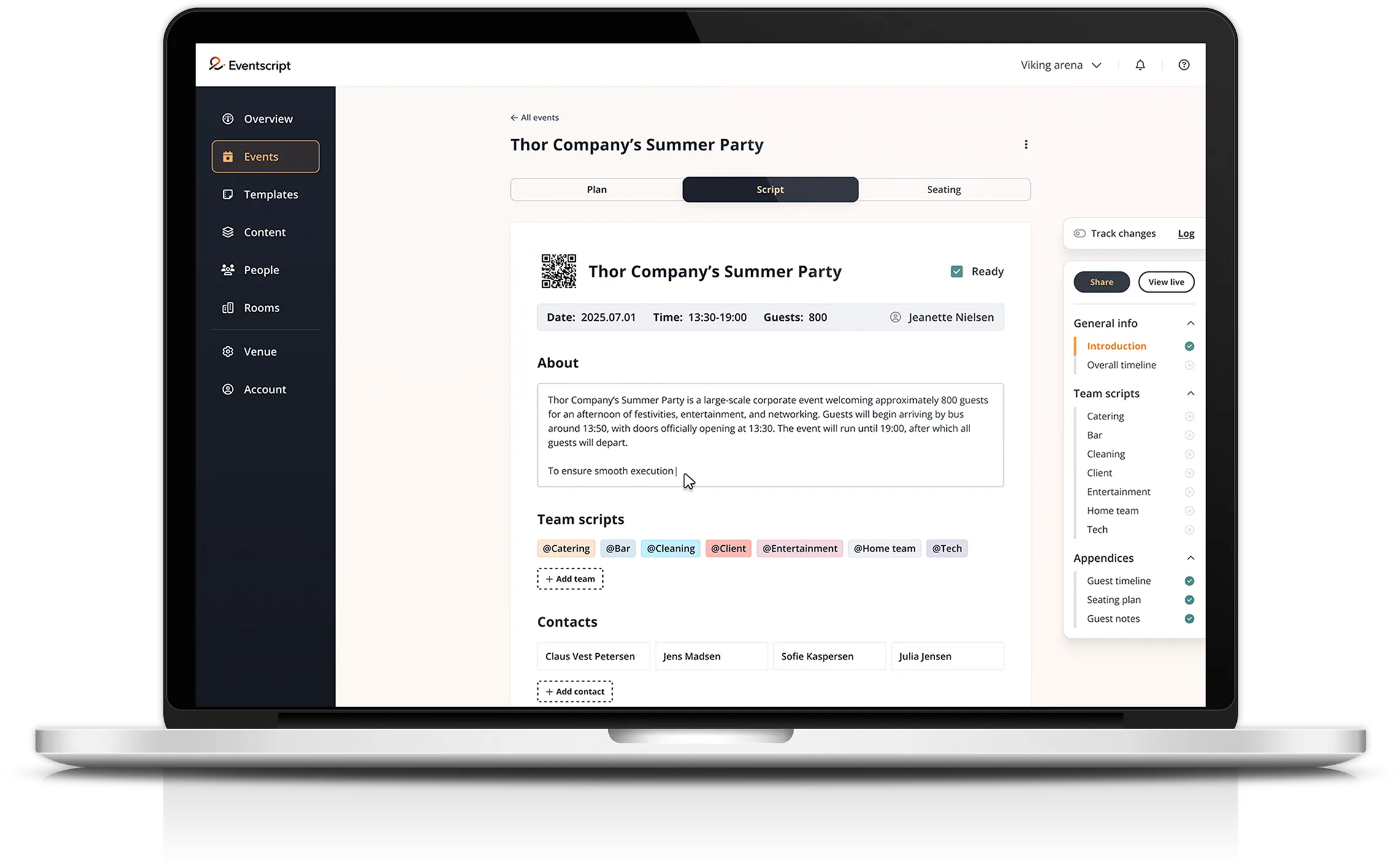
In Eventscript, the planner built one event management platform timeline and tagged each item to the team it concerned. A line like “Reception on the terrace, 16:00 to 17:30” was tagged to both kitchen and floor. “Guest check-in” was tagged only to reception.
From that single timeline, Eventscript generated a filtered briefing for each team:
Kitchen got the full menu, the allergy list with guest names and table numbers, and every prep and service time that touched the kitchen.
Floor got the toastmaster’s full speech schedule, the bar menu, table layout, and service notes for each course.
Reception got room assignments, check-in windows, and Sunday’s checkout flow, with nothing about the menu or the speeches.
Each team also got a short instructions block at the top of their briefing: the handful ofthings they absolutely had to remember on the day. Allergies served first. Children’s menu at 16:30. Bar extended to 3am.
The result
No team had to read the full plan to find their part of it. The kitchen never saw the church program. Reception never scrolled past a wine list to find a room number. The planner kept editing one timeline. When a dietary requirement changed or a course time shifted, she updated it once, in one place, and every relevant team briefing updated with it.
That’s the difference between a document everyone has to interpret and a event management system that does the interpreting for them.

Why it matters for event teams
Most event coordination doesn’t fail because the plan is wrong. It fails because the plan is right, but buried, and the person who needed one line out of two hundred had to go find it themselves.
Eventscript is built on a simple idea: the planner is the only person who needs to see the whole picture. Everyone else needs their slice of it, briefed clearly, with nothing extra towade through. One source. Tagged once. Delivered as exactly what each team needs to know, and nothing more.
See Eventscript in action with a free demo
Book a demo and see how Eventscript turns your event plan into briefings your team will actually read.

Frequently asked questions
Can Eventscript split one event plan into separate team briefings automatically?
Yes. Tag any item in the timeline to one or more teams, and Eventscript generates a filtered briefing for each team automatically. Update the timeline once, and every team briefing updates with it.
Does this work for events with overlapping teams, like a wedding with kitchen, floor, and reception staff?
Yes. An item can be tagged to more than one team at once. A reception serving with food and drink, for example, can show up in both the kitchen’s and the floor team’s briefings, while a check-in detail stays with reception only.
What stops important details, like allergies, from getting lost in a long event plan?
Eventscript lets planners build dedicated sections, like an allergy list or a menu, that sit at the top of a team’s briefing instead of being buried inside a long chronological plan. The team sees what matters most before they ever scroll.